Your First Module with Faust
For our first module, we will make a simple low-pass filter, with one big knob to control the cut off frequency. First create your new project by creating a directory and populating it with a simple Faust template. Choose first where you want this project to live. In this example we will put this project in our home folder directly. Then type:
~$ mkdir LowPass
~$ cd LowPass
~/LowPass$ erbb init --name LowPass --language faust
~/LowPass$ erbb configure
If you are using Xcode open project_vcvrack.xcodeproj in the artifacts folder.
Note
In the following source code files, we have removed all comments to keep the file easy to read for this tutorial.
Let’s now add the pot with a big knob, by editing the Lowpass.erbui file,
as highlighted in the following erbui source code:
// LowPass.erbui

module LowPass {
   width 12hp
   board kivu12
   material aluminum
   header { label "LowPass" }

   control freq Pot {      // 1
      position 6hp, 34mm   // 2
      style rogan, 6ps     // 3
      label "FREQ"         // 4
   }

   control audio_in AudioIn {
      position 6hp, 96mm
      label "IN"
   }

   control audio_out AudioOut {
      position 6hp, 111mm
      label "OUT"
   }
}
Add a pot and give it the name
freq(we will see how names are used later)Give it a position, first is on the horizontal axis, and second is on the vertical axis. Note that both have units, with
hpbeing the Eurorack HP for convenience. Since half of 12HP is 6HP, this will place the pot at the horizontal center in the moduleLet’s give it a specific style, which here is the knob style.
roganis the brand of the knob used in many Mutable Instruments and Make Noise modules, and6psis the Rogan manufacturer part name. You could use herexlargeinstead. The style is optional, so you can remove this line and the engine will select one default style for you.Give it an optional label, which will be printed on the front panel aluminum.
You can already build the project using ⌘B and run VCV Rack to see what it looks like.
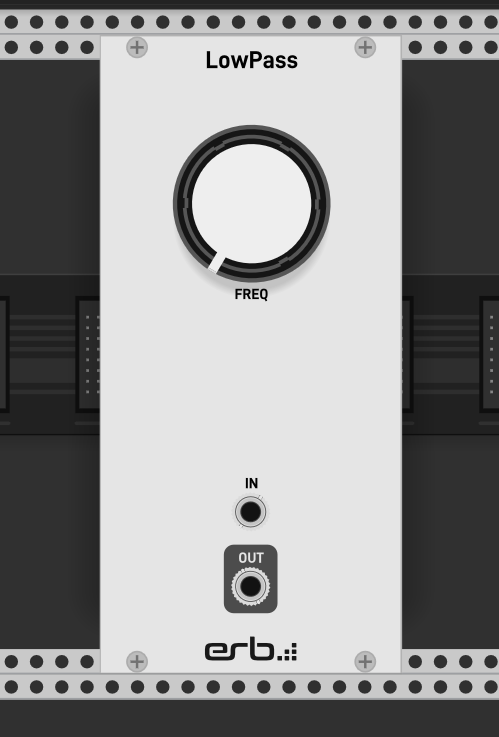
You can connect inputs and outputs, and you can hear that the input goes on the output but moving the FREQ knob doesn’t have any effect.
Let’s now take care of this.
One big advantage of Faust over C++ is the huge standard library of already meticulously
crafted audio objects at your finger tips!
Let’s update LowPass.dsp to add our filter:
// LowPass.dsp

import("stdfaust.lib");

fc = hslider("freq", 1000, 100, 10000, 1);
process = fi.resonlp(fc,1,0.8);
We are using a hslider
which delivers a continuous value, which is what we want. Note
that we could have used vslider
and that wouldn’t change a thing:
that’s because Eurorack-blocks ignores all layout and appearance information dictated from
the Faust dsp file. Instead, the erbui content is used.
Finally, hslider is using the Faust primitive label freq exactly like it was defined in our erbui file:
   control freq Pot {
      position 6hp, 34mm
      style rogan, 6ps
      label "FREQ"
   }
This is how you map your control name in erbui to the primitive label in Faust dsp file.
The mapping system is powerful, and what you see now is just some syntactic sugar in the
simple cases.
You can already build the project using ⌘B and run VCV Rack to see what it looks like.
Important
Don’t forget to set your VCV Rack Audio Output to 48kHz!
Why do we need to set the audio output to 48kHz? This is because Eurorack-blocks controls the audio sample rate to ensure that how it sounds in VCV Rack is the same as how it sounds on the hardware platform, and also because the hardware platform only supports some specific sample rates.
You can read more about sample rates and latency in the Target Audio Configuration section in this manual (coming soon).
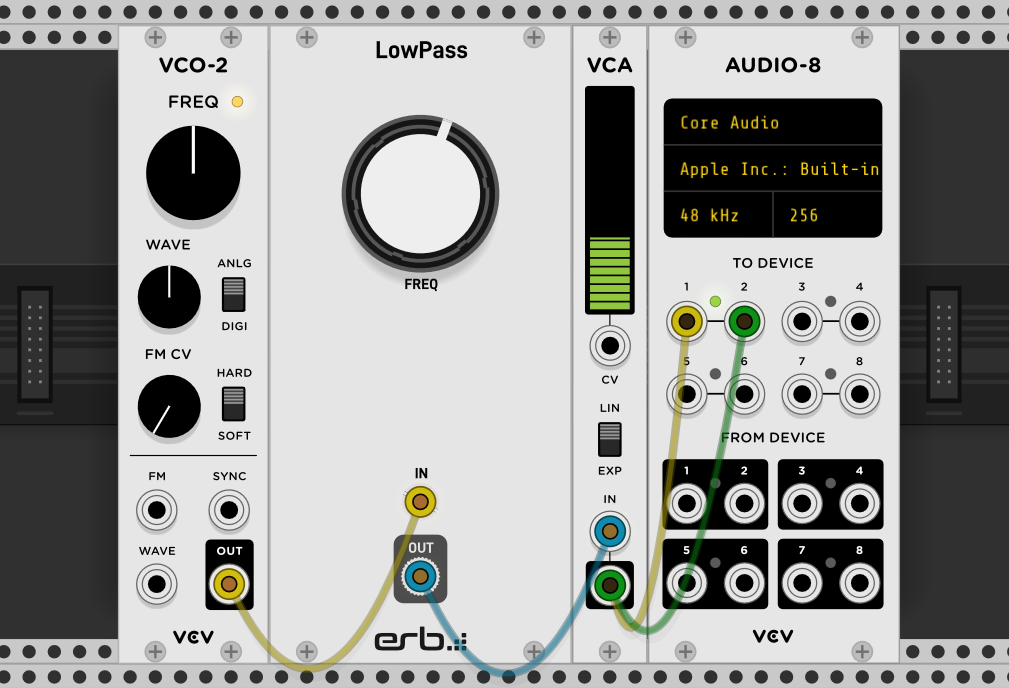
You can test your plug-in with this typical configuration. Don’t forget to put a VCA as a pure VCO output can be quite loud! You will get the following result, and moving the “FREQ” knob will change the sound as expected!